
Explainer
Can Your USB-C iPhone Connect to a Monitor? What to Check
By SpecCairn · Published October 28, 2026 · Documentation-based explanation, not a hands-on review
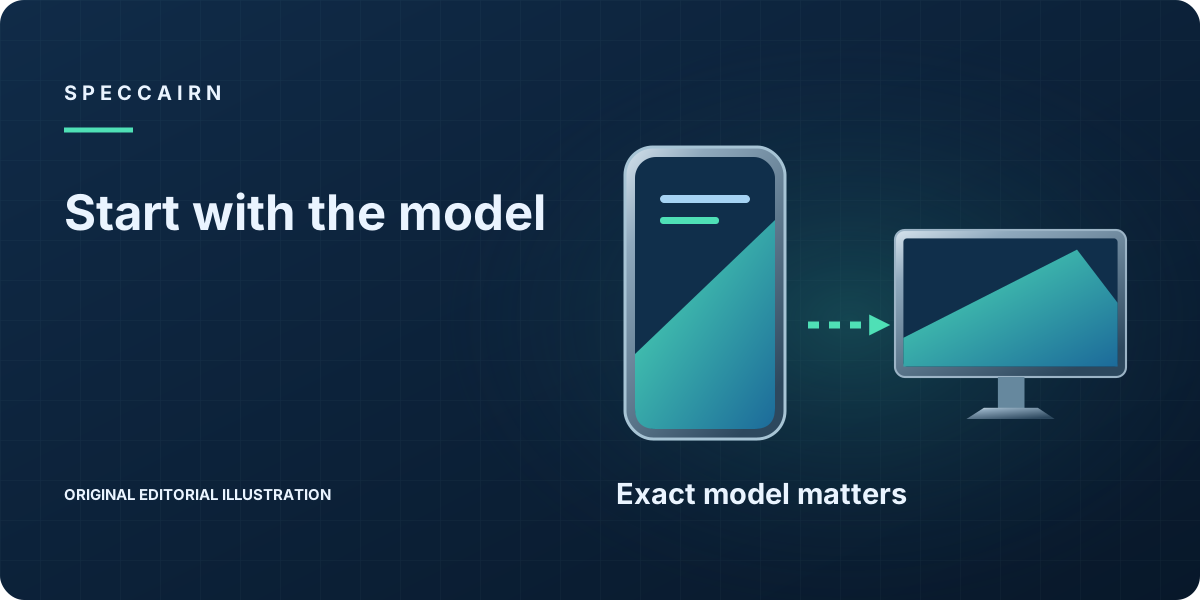
For an iPhone-to-monitor connection, check the exact model and the documented cable or adapter path before buying anything. A connector label alone is not a completed compatibility check. For supported models, Apple describes mirroring unless an app offers a second-screen experience; that is not a promise of an independent desktop. This guide does not provide a verified supported-model list. 123
Start with the exact model, not the port
SpecCairn recommends looking up display support for the exact iPhone model in the applicable manufacturer documentation. If that documentation states conditions for your model, include them in the check; do not infer support or exclusion from a similar model name or connector. 13
A useful worksheet question is: Do I know the exact phone model, or only that it has USB-C? If the answer is only the connector type, the check is incomplete. The model name is the starting identifier, not compatibility evidence on its own. 13
Separate mirroring from a second-screen experience
For supported iPhone models, the external display generally mirrors the phone. That is a different outcome from a desktop-like or second-screen workflow, which only happens when an app provides that experience. In other words, external display support does not automatically mean the monitor will behave like a separate computer desktop. 2
This distinction helps prevent false expectations. If your goal is simply to show the phone screen on a larger display, mirroring may be enough. If your goal is a distinct workspace on the monitor, the presence of USB-C alone does not guarantee it, and the app itself has to provide that second-screen behavior. 23
Check the adapter or cable path before you connect
SpecCairn’s connection-planning checklist treats the cable or adapter path as a separate question from model support. Compare your planned phone-to-display connection with the applicable documented requirements; if the match is unclear, leave compatibility unresolved. 3
SpecCairn’s suggested sequence: identify the exact iPhone model, look for an explicit statement about display support, and compare the planned cable or adapter path with the applicable documentation. Record any conditions you actually find rather than assuming they exist. If any step is uncertain, the connection plan is incomplete. 13
What this means for purchase or setup decisions
For someone choosing a phone for monitor use, the safest question is not “Does it have USB-C?” but “Does this exact model support the display behavior I want?” That question avoids overgeneralizing from the port alone. This guide is scoped to iPhone guidance and makes no all-phone compatibility promise. 13
Hypothetical example: a buyer knows the connector but has not checked the exact iPhone model. Leave wired-display support unresolved rather than guessing. After model support is established, check the intended app’s display behavior separately; a supported connection and a second-screen workflow are different questions. 12
Quick decision map for iPhone-to-monitor checks
| Check | What it tells you | Evidence |
|---|---|---|
| Exact phone model | Whether the exact model has documented display support | Record the actual model-specific passage; this guide confirms neither a supported nor an excluded model 1 |
| Display behavior goal | Whether you want mirroring or a second-screen app experience | Supported iPhone models generally mirror unless an app provides a second-screen experience 2 |
| Cable or adapter path | Whether the connection path matches the documented setup | Adapter or cable must match the documented phone and display path 3 |
Your next-step checklist
- Confirm the exact phone model, not just that it has USB-C. 13
- Check the exact model’s documented display support and qualifications. 1
- Decide whether you want simple mirroring or a second-screen app experience. 2
- Match the adapter or cable to the documented phone-to-display path. 3
- If the model or path is uncertain, treat the setup as unresolved rather than assumed compatible. 13
Frequently asked questions
Is the connector enough to establish iPhone display support?
No. It does not identify the exact model’s documented display capability. Check the applicable model guidance rather than treating the connector as compatibility evidence. 13
If a supported iPhone connects to a monitor, will it show a separate desktop?
Not by default. Apple’s note says supported iPhone models generally mirror the phone unless an app provides a second-screen experience. 2
What should I verify before buying a cable or adapter?
Verify the exact phone model first, then make sure the adapter or cable matches the documented phone-and-display path. 13
Scope and limitations
- This guide covers Apple’s USB-C iPhone guidance only and does not make an Android-wide claim.
- No supported or excluded model is confirmed here. Verify the applicable model, software, app and connection requirements before a purchase.

Scope: This guide covers Apple’s USB-C iPhone guidance only and does not make an Android-wide claim. No supported or excluded model is confirmed here. Verify the applicable model, software, app and connection requirements before a purchase.
Sources and reference notes
- SpecCairn model-check worksheet, not a verified model-support list. The separate connection-path reference supplies context; model support remains a distinct check.Scope: Read manually from the official documentation cited here; not independently re-checked, no archived copy was kept, and the documentation version read was not recorded. Back to text
- Apple reference on iPhone USB-C connections. Connect to displays and monitors: mirroring versus app-provided second-screen behavior on supported models. No verified model list is supplied.Scope: Read manually from the official documentation cited here; not independently re-checked, no archived copy was kept, and the documentation version read was not recorded. Back to text
- Apple reference on iPhone USB-C connections. Connect to displays and monitors; Connect to a USB-C display; Connect to an HDMI display or TV. Supported device/display paths only; no model, resolution, HDR or universal cable guarantee.Scope: Read manually from the official documentation cited here; not independently re-checked, no archived copy was kept, and the documentation version read was not recorded. Section locations and footnotes were added in a later reading, whose date is not stated. Back to text
Found an error? See the corrections process.