
Explainer
USB-C Monitor: Why USB Works but Video Does Not
By SpecCairn · Published October 28, 2026 · Documentation-based explanation, not a hands-on review

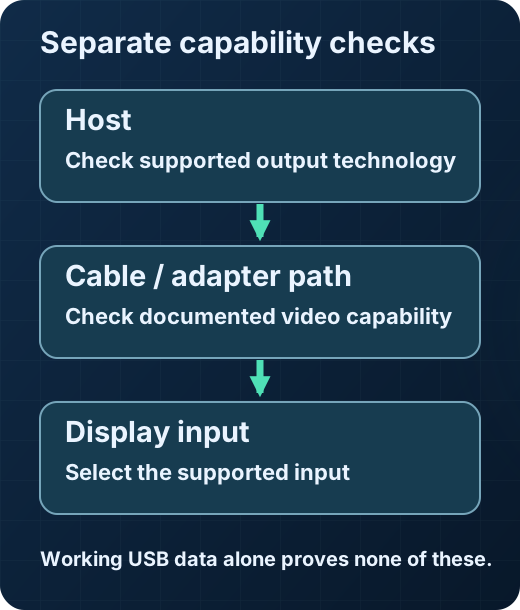
If a mouse connected through your monitor works but the screen shows no signal, check three possible gaps: the cable lacks video capability, the laptop port does not provide the required video output, or the monitor connection is data-only rather than a video input. A working peripheral does not establish a complete video path.123
Picture, peripherals and charging are separate checks
| What you need | What to look for | Where to check |
|---|---|---|
| A picture | A compatible video-output port, video-capable cable and monitor video input | Laptop port specification, cable documentation and monitor input diagram.2 |
| Mouse, keyboard or other USB peripherals | The monitor’s USB upstream connection to the computer | Monitor USB-hub connection instructions; do not mistake this for video support.23 |
| Laptop charging | A supported PD power arrangement, including cable capability | Laptop charging requirements and monitor power-output specification; wattage alone does not describe video capability.4 |
1. The cable may carry USB data and charging, but not video
A USB 2.0 Type-C cable can carry peripheral data and support Power Delivery without supporting DisplayPort Alt Mode. It is not necessarily a “charge-only” cable. This explains how USB accessories can keep working while a native video connection is unavailable.1
For a direct USB-C DisplayPort Alt Mode connection, look for a cable explicitly documented for that video application. VESA describes passive full-featured USB-C cables carrying DisplayPort lanes. Do not assume a power rating, an e-marker claim, or the shape of the plugs establishes the complete video capability.54
2. The laptop’s chosen port may not provide the video path
Check the specification for the particular port, not just whether the laptop has USB-C. Microsoft recommends matching the PC, display and cable’s Alternate Mode capability and using the correct port.2
An example of explicit documentation is Microsoft’s Surface Laptop for Business, Snapdragon X Series, 7th Edition specification: its port section separately lists charging, data transfer and DisplayPort. That wording identifies functions; the connector name alone would not.6
3. The monitor connection may be for USB data, not the picture
Do not interpret “upstream” as a synonym for “video input.” USB-C is a connector type, and the functions behind a particular USB-C port vary by product; USB-IF asks manufacturers to state which capabilities a product supports. Microsoft’s troubleshooting guidance likewise requires the PC, the external display and the cable to support the video alternate mode. Check your monitor’s documentation for which connection receives the picture.32
Identify the technology before troubleshooting
DisplayPort Alt Mode uses a capable USB-C connection for DisplayPort video. USB4 can also carry DisplayPort as tunnelled packets over the USB4 link, which is separate from DisplayPort Alt Mode. Thunderbolt docks need the appropriate host port and cable capabilities; do not diagnose them from connector shape alone. Traditional DisplayLink USB graphics docks use DisplayLink software: check the exact dock’s instructions before treating software installation as the missing step.5728
Try this sequence before buying a replacement
- Confirm the laptop’s intended video port and the monitor’s receiving input. Check how your own monitor selects its input in that monitor’s manual.2
- Check the cable’s video application separately from its charging rating. If an explicitly compatible cable is available, try it rather than replacing the monitor first.15
- Where the documented connection allows it, connect the display or video adapter directly to the computer to remove an intermediate hub or dock from the troubleshooting path.2
- If the setup uses DisplayLink, follow that device’s supported software instructions. If it uses native Alt Mode, return to the port/cable/input checks rather than assuming a generic USB driver will fix it.82
FAQ
Does a 100W or 240W cable label mean it supports monitor video?
Can USB 2.0 still explain why my mouse works?
Yes. A USB 2.0 data connection can serve peripherals without providing the DisplayPort Alt Mode video path.1
Do I need DisplayLink software for every USB-C monitor?
No. The DisplayLink software instructions apply to DisplayLink-enabled hardware, not every USB-C display connection. Identify your dock or monitor’s actual technology first.8
Scope
These checks identify documented connection requirements, not a confirmed fault. Exact display modes and device combinations still depend on the equipment.
Scope: These checks identify documented connection requirements, not a confirmed fault. Exact display modes and device combinations still depend on the equipment.
Sources and reference notes
- USB-IF: USB Type-C and USB 2.0 Type-C Cable and Connector Language Usage Guidelines. PDF p.3, USB 2.0 Type-C Product Key Messages. Scope: USB-IF March 2023 language guidance; USB 2.0 data, PD and video capability are distinct; no logo reproduced. Back to text
- Microsoft: Fix USB-C problems in Windows. Windows 11: Slow charger; PC isn't charging; Thunderbolt device functionality might be limited; Display connection might be limited. Scope: Public support article, retrieved 2026-10-21; publication date not stated. Windows 10 legacy sections not treated as current Windows 11 instructions. Back to text
- USB-IF: USB Type-C and USB 2.0 Type-C Cable and Connector Language Usage Guidelines. PDF p.2 USB Type-C Product Key Messages; p.3 Technology and Power and Performance Capabilities Key Messages. Microsoft: Fix USB-C problems in Windows. Windows 11: Display connection might be limited. Scope: A1-v3 article scope Back to text
- USB-IF: Cables and Connectors | USB-IF. USB-C to USB-C Cable Logo Requirements. USB 3.0 Promoter Group: Universal Serial Bus Type-C Cable and Connector Specification, Release 2.0, August 2019. PDF p.37 §3.1.2/Table 3-1; p.231 §4.9. Scope: USB Type-C Release 2.0, August 2019, historical detachable C-to-C cable example; no current-standard verification, universal retail marking rule or logo reproduction. Back to text
- VESA: VESA - DisplayPort Alternate Mode on USB-C. PDF pp.20,22: passive full-featured cable and high-speed DisplayPort lanes. Scope: Presentation cover September 18, 2019; historical cable/architecture explanation only, no present performance ceilings inferred. Back to text
- Microsoft: Tech specs - Surface Laptop for Business, Copilot+ PC, Snapdragon X Series processor, 7th Edition. Ports and charging. Scope: Publicly returned body lists USB-C/USB4 charging, data and DP 1.4a. Page also shows a generic authorization banner; no sign-in or access-control bypass performed. Used only as a documentation-label example, not a complete current-US product verification or laptop manual. Back to text
- USB-IF: USB4 System Overview (USB Developer Days 2019, Taipei). PDF p.27, DP Tunneling. Scope: November 19, 2019 cover. Architectural concept only, not current model features or speed guarantees. Back to text
- DisplayLink: How to install DisplayLink Software. Windows 10/11 installation steps, especially connect DisplayLink-enabled device; macOS section. Scope: Page includes dated OS examples. Used for traditional software-based DisplayLink installations, not every future DisplayLink variant; no software downloaded/installed. Back to text
Found an error? See the corrections process.