
Explainer
Laptop Charges Slowly Through a Dock: Check the Complete Power Path
By SpecCairn · Published October 28, 2026 · Documentation-based explanation, not a hands-on review

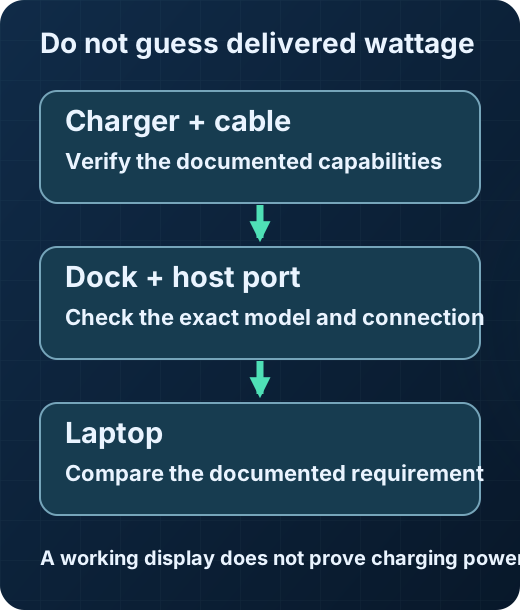
Treat slow charging through a dock as a complete power-path question: charger, cable, dock, charging port and laptop. Microsoft lists several possible causes, not a single universal fault. Record the exact components and compare their documented charging capabilities before replacing one. A working display or USB accessory does not prove that the charging path meets the laptop’s needs. 123
What the complete power path includes
A dock is only one part of the charging chain. Microsoft lists insufficient charger power, the wrong charging port, cable capability, and an intervening hub or dock as possible causes of slow or no charge. That means the first decision is not “is the dock bad?” but “which link in the path is mismatched or limited?” 12
The practical implication is simple: the charger, cable, dock, and device all have to support the required charging standards and power levels. If one link does not support the needed level, the system may still charge, but not as expected. 2
How to separate dock limits from charger limits
A direct comparison is the cleanest decision worksheet. First use the dock path, then use a direct charger path with the same computer, using the charger supplied or documented as compatible by the computer’s maker. If the direct path behaves differently, the dock path deserves closer attention. If both paths look similar, the limiting factor may be upstream of the dock or inside the device’s supported charging behavior. 12
Do not treat charging behavior as proof that every other feature of the dock is also working as expected. Microsoft notes that display and USB behavior depend on the documented capabilities of the complete connection, so a dock can appear acceptable for one function while still being limited for another. 3
Write a power-path inventory
Use one row per component: the charger model, the cable model or rating, the dock model, the port used and the laptop model. Beside each, record the manufacturer’s applicable charging specification and where you found it. Write “not documented” for any value you cannot find. Do not substitute a charger’s headline rating for the power the dock documents at its host connection. 12
Do not subtract an assumed dock overhead or promise a fixed percentage loss. Without the relevant product specifications, that would create precision that the evidence does not support. The useful output is a list of supported capabilities and missing entries, not an invented wattage reaching the battery. 12
Compare observations without calling them a benchmark
If the manuals permit both arrangements, note the direct connection and dock connection separately. Keep the laptop, starting charge level and workload as comparable as practical, and record any warning text. A changed observation can help narrow the investigation, but it does not isolate one defective component or establish a measured charging-rate claim. 12
Decision worksheet for a slow-charging dock path
| Check | What to compare | Why it matters |
|---|---|---|
| Power source | Dock setup versus direct charger connection | Helps separate dock-path limits from charger-path limits 12 |
| Cable capability | Cable used with the dock versus cable used directly | Cable support is part of the required charging path 2 |
| Port/connection path | Which port is used on the computer and dock | Microsoft lists the wrong charging port as a possible cause 1 |
| Host capabilities | What the computer documents for charging support | The complete connection must meet the needed standards 2 |
| Non-charging functions | Whether display or USB behavior matches expectations | Charging alone does not prove the full dock path is not limited 3 |
Your next-step checklist
- Compare only documented compatible dock and direct-charger paths on the same computer. 12
- Confirm that the charger, cable, dock, and device are all intended to support the required charging standard and power level. 2
- Check whether the connection is using the intended charging port and not a different port with different capabilities. 1
- Treat a working display or USB function as separate from charging; do not assume one outcome proves the whole dock path. 3
Frequently asked questions
Does a dock that works for display automatically mean charging will be fast enough?
No. Microsoft distinguishes charging capability from display and USB capability in the complete connection, so one working function does not prove the others are fully supported. 3
What is the safest first comparison step?
If the manufacturer permits both paths, compare the dock connection with a direct charger on the same computer and record any warnings. A difference narrows the investigation; it does not isolate one defective component or measure battery input power. 12
Scope and limitations
- No dock, cable or laptop was physically tested; exact supported charging paths remain model-specific.
Scope: No dock, cable or laptop was physically tested; exact supported charging paths remain model-specific.
Sources and reference notes
- Microsoft: Fix USB-C problems in Windows. Windows 11: Slow charger; PC isn’t charging — Windows 10: Slow USB charger connected; PC (or phone) isn’t charging — Display connection might be limited. Scope: Windows guidance includes historical Windows 10/phone sections; no instructions to clean ports or install arbitrary drivers Back to text
- Microsoft: Fix USB-C problems in Windows. Windows 11: Slow charger; PC isn’t charging — Windows 10: Slow USB charger connected; PC (or phone) isn’t charging — Display connection might be limited. Scope: Windows guidance includes historical Windows 10/phone sections; no instructions to clean ports or install arbitrary drivers Back to text
- Microsoft: Fix USB-C problems in Windows. Windows 11: Slow charger; PC isn’t charging — Windows 10: Slow USB charger connected; PC (or phone) isn’t charging — Display connection might be limited. Scope: Windows guidance includes historical Windows 10/phone sections; no instructions to clean ports or install arbitrary drivers Back to text
Found an error? See the corrections process.