
Explainer
How to Back Up Your iPhone Before Updating iOS
By SpecCairn · Published October 28, 2026 · Documentation-based explanation, not a hands-on review

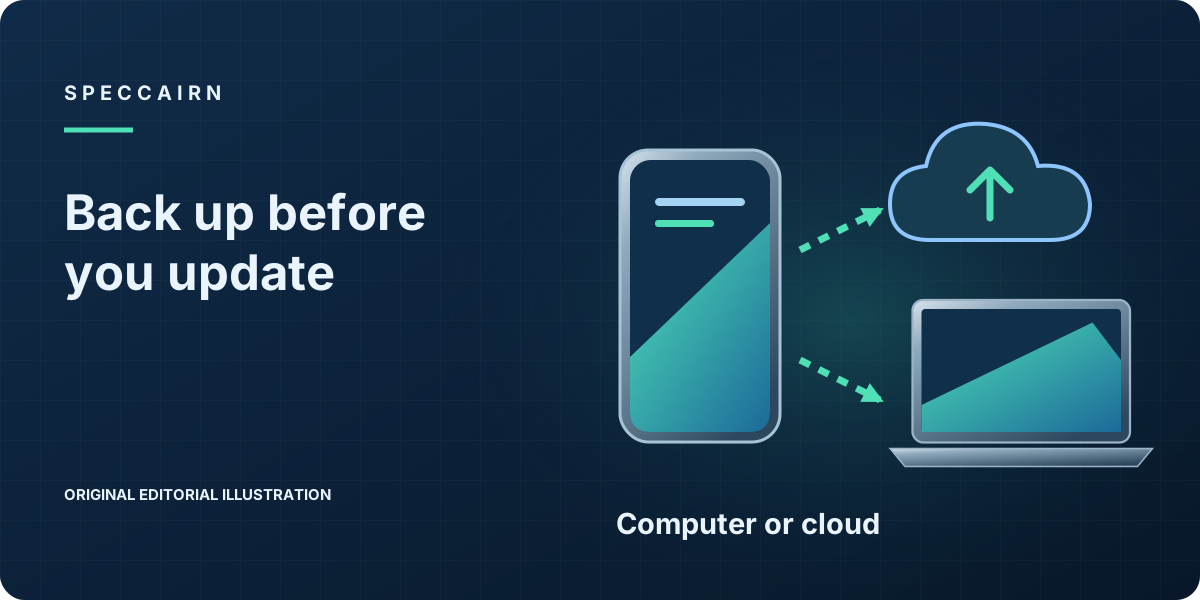
Short answer: Apple’s update instructions start with a backup. Back up with iCloud, a Mac or a Windows PC, confirm the backup’s date and time, then update in Settings > General > Software Update.12
How this guide was made: SpecCairn did not run these backups on a test iPhone. The steps follow Apple Support.
Before you begin
- Choose a method. iCloud needs Wi-Fi and enough iCloud storage; a computer backup needs a cable and a Mac or Windows PC.345
- Health and Activity data are saved in a computer backup only if you encrypt it. An encrypted backup cannot be restored without its password; keep that password safe.45
- For the update itself, plug the iPhone into power and use Wi-Fi.1
Option A: back up with iCloud
- Connect the iPhone to Wi-Fi.3
- Open Settings, tap your name, then tap iCloud.3
- Tap iCloud Backup, then Back Up Now.3
- Stay on Wi-Fi until it finishes.3
Option B: back up with a Mac
- Connect the iPhone to the Mac with a cable. If asked, click Allow.4
- Open the Finder and select the iPhone in the sidebar. On macOS Mojave or earlier, use iTunes instead.4
- If asked, trust the computer and enter the iPhone passcode.4
- To include Health and Activity data, select Encrypt local backup and set a password.4
- Click Back Up Now and wait.4
Option C: back up with a Windows PC
- Open the Apple Devices app (or iTunes if the PC doesn’t have it) and connect the iPhone with its cable.5
- Follow the prompts to enter the passcode or trust the computer.5
- Click General in Apple Devices, or Summary in iTunes.5
- Optionally select Encrypt local backup, then click Back Up Now.5
How to check it worked
The date and time of your last backup appear under Back Up Now for iCloud. For a computer backup, Apple says they appear after a successful backup in the Finder, or in the iTunes window.345 Check that they show today’s date before you update.2
Then update iOS
Go to Settings > General > Software Update. If an update is available, tap Download and Install and follow the onscreen instructions.1
Troubleshooting
| Problem | What to do |
|---|---|
| Not enough iCloud storage | Follow the onscreen steps to buy more storage, or back up to a computer instead.34 |
| The Mac or PC asks to trust the device | Follow the Trust prompts on both devices.45 |
| You forgot an encrypted-backup password | Apple says an encrypted backup can’t be restored without its password. Apple’s Windows backup page links to its help article about encrypted backups.45 |
FAQ
Do I need to back up before every update?
Apple’s update steps begin with a backup.1
About this guide
Not affiliated with Apple. See the methodology.
Scope: iPhone (Apple also covers iPad). Research-based from Apple Support; not device-tested.
Sources and reference notes
- Apple Support: Update your iPhone or iPad. Update your iPhone or iPad wirelessly; dated 2026-09-15; accessed 2026-10-28; official. Back to text
- SpecCairn editorial guidance based on the cited sources; not a statement by a manufacturer or publisher. Back to text
- Apple Support: Back up your iPhone or iPad with iCloud. Back up manually; dated 2026-09-24; accessed 2026-10-28; official. Back to text
- Apple Support: Back up your iPhone or iPad with your Mac. Back up with the Finder; dated 2026-10-05; accessed 2026-10-28; official. Back to text
- Apple Support: Back up your iPhone with Windows. Steps; Learn more links; dated 2026-09-15; accessed 2026-10-28; official. Back to text
Found an error? See the corrections process.